How to create an event
Creating an event takes about two minutes. You fill in the basics, add your tickets, choose your checkout settings, and it goes on sale straight away.
Step 1 of 7
Start a new event
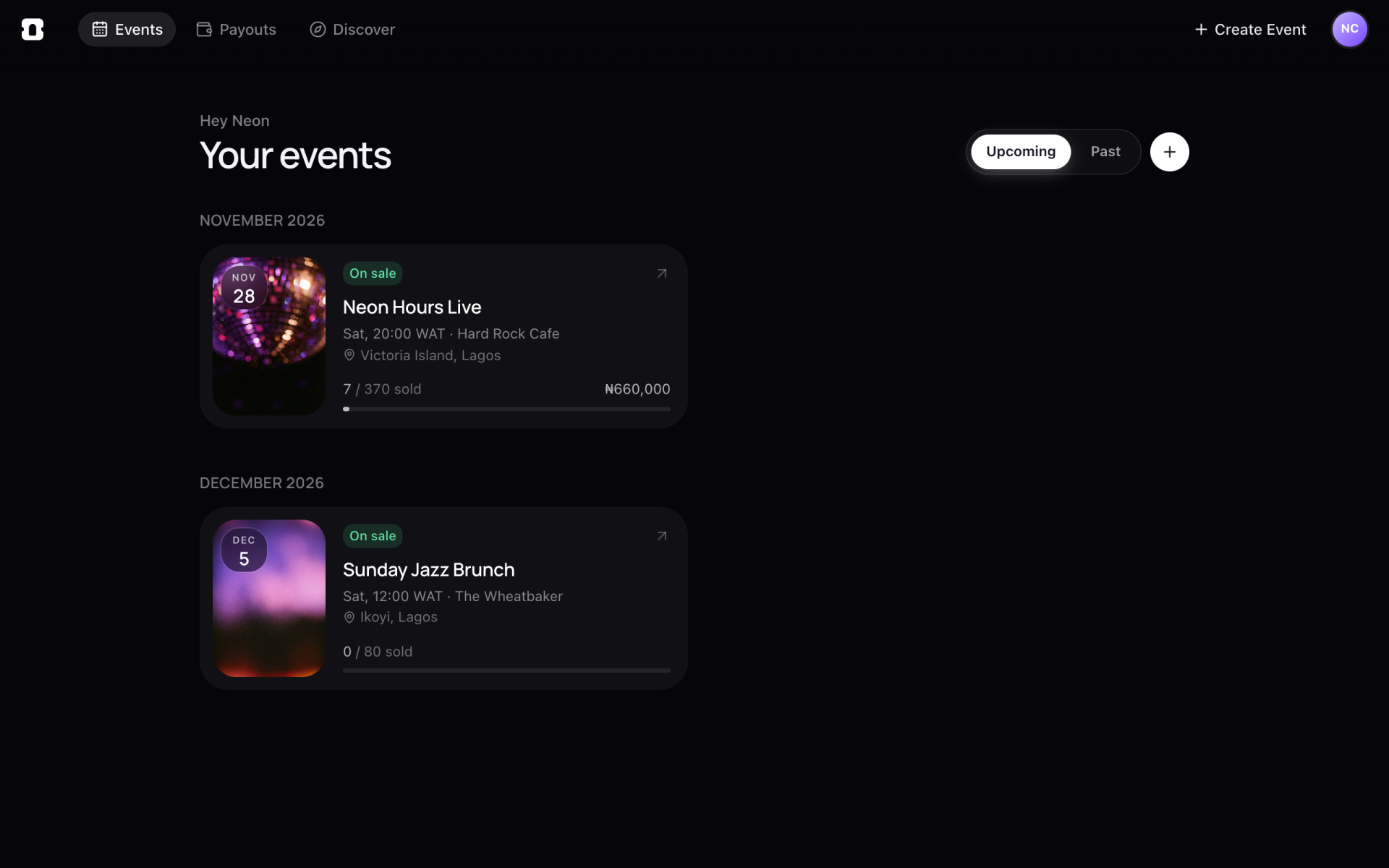
- Sign in to entrans.
- Click Create Event at the top right of any page.
Step 2 of 7
Fill in the basics
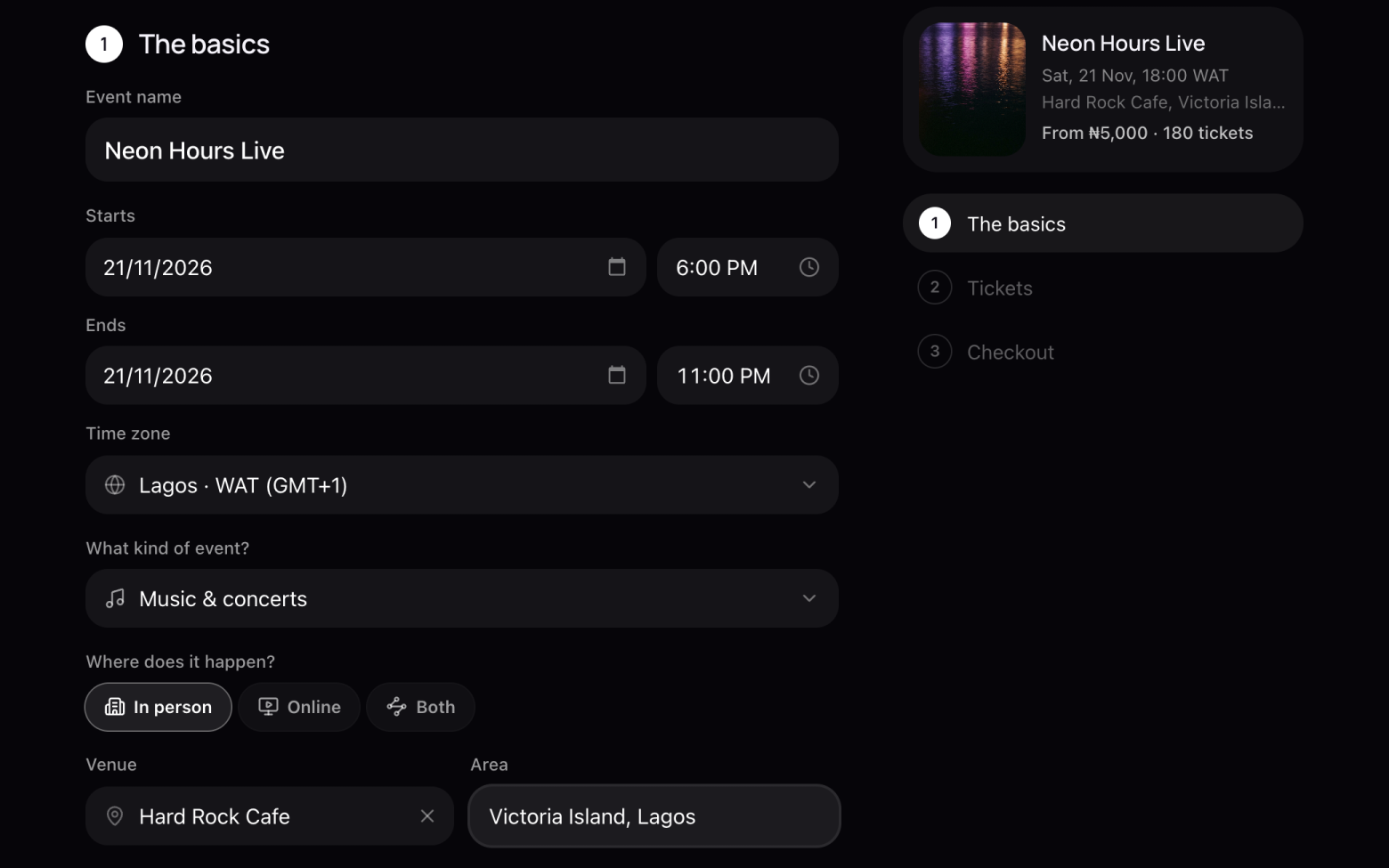
- Give your event a name.
- Set when it starts and ends. The time zone is Lagos (WAT) unless you change it.
- Under What kind of event?, pick a category.
- Choose In person, Online or Both, then add the venue and the area.
Step 3 of 7
Add your poster
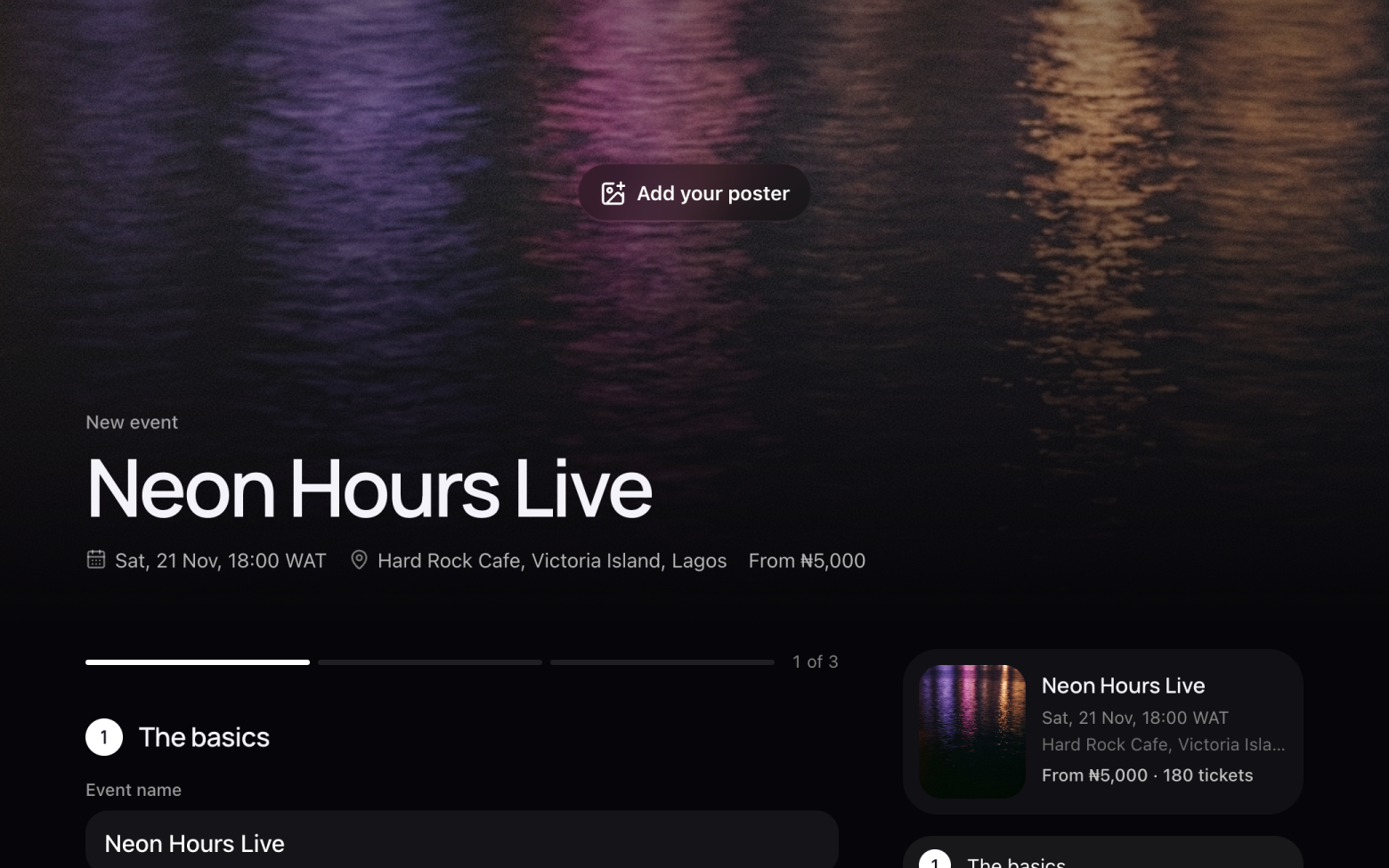
- Click Add your poster at the top and choose an image.
- A tall poster looks best. No poster yet? We show one of ours until you add yours.
Step 4 of 7
Choose who can find it
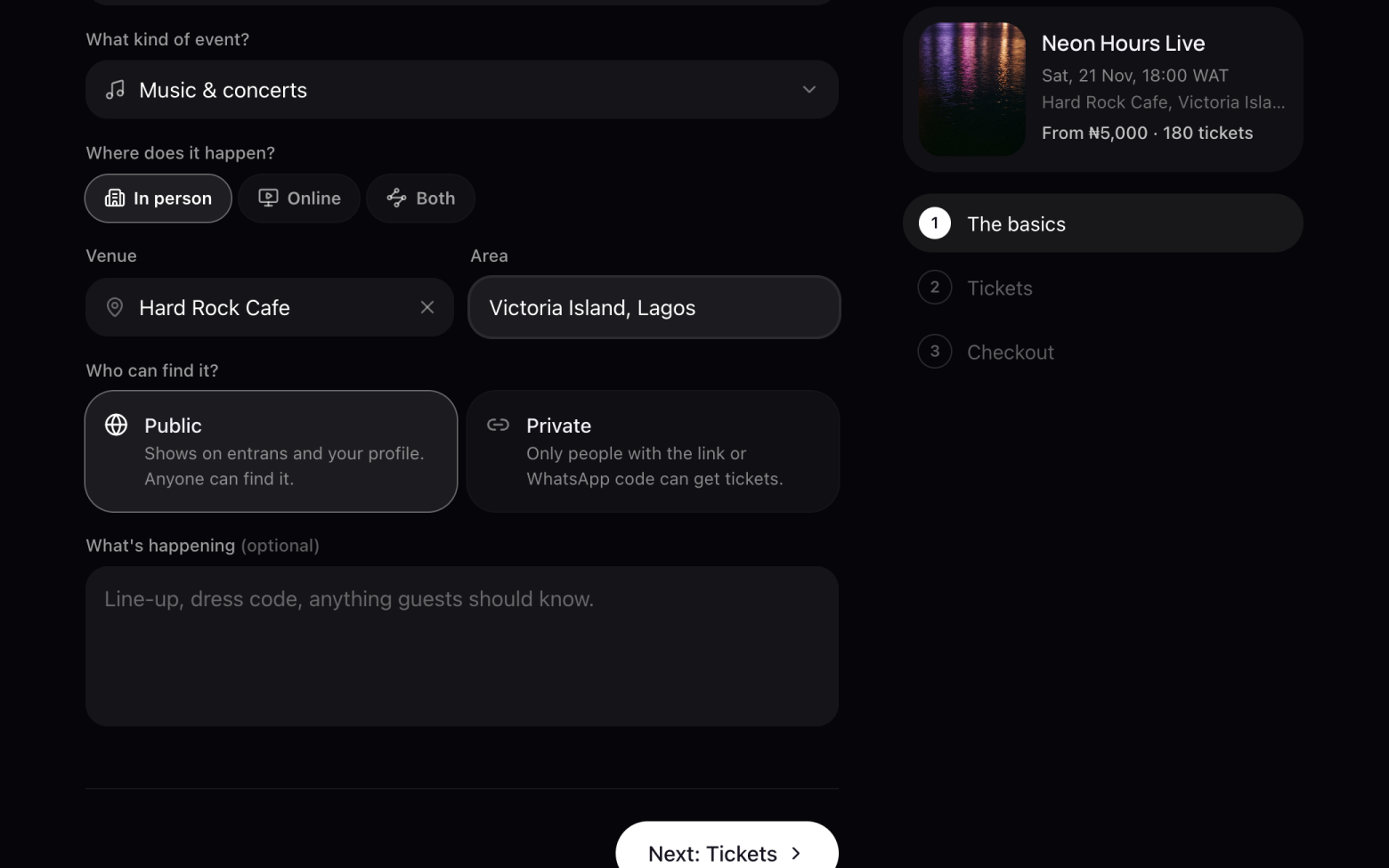
- Public events show on entrans and on your host profile, so anyone can find them.
- Private events don't show anywhere. Only people with the link or the WhatsApp code can get tickets.
- Add a description if you like: the line-up, the dress code, anything guests should know. Then click Next: Tickets.
Step 5 of 7
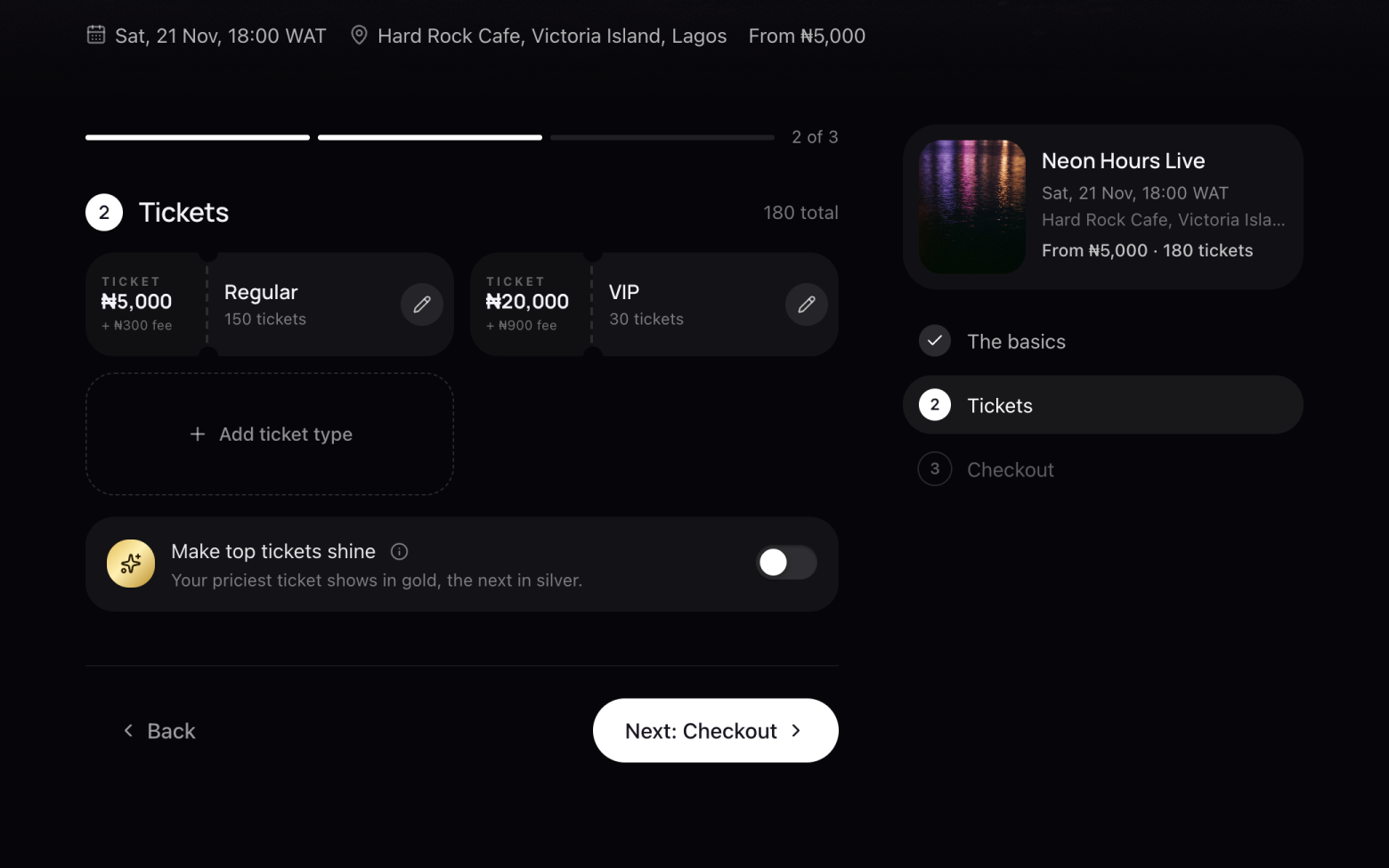
Add your tickets
- Click Add ticket type for each price you sell: Regular, VIP, a table.
- Give each one a name, a price and how many there are. Turn on Free ticket for RSVPs.
- Click the pencil on a ticket to change it. Then click Next: Checkout.
Step 6 of 7
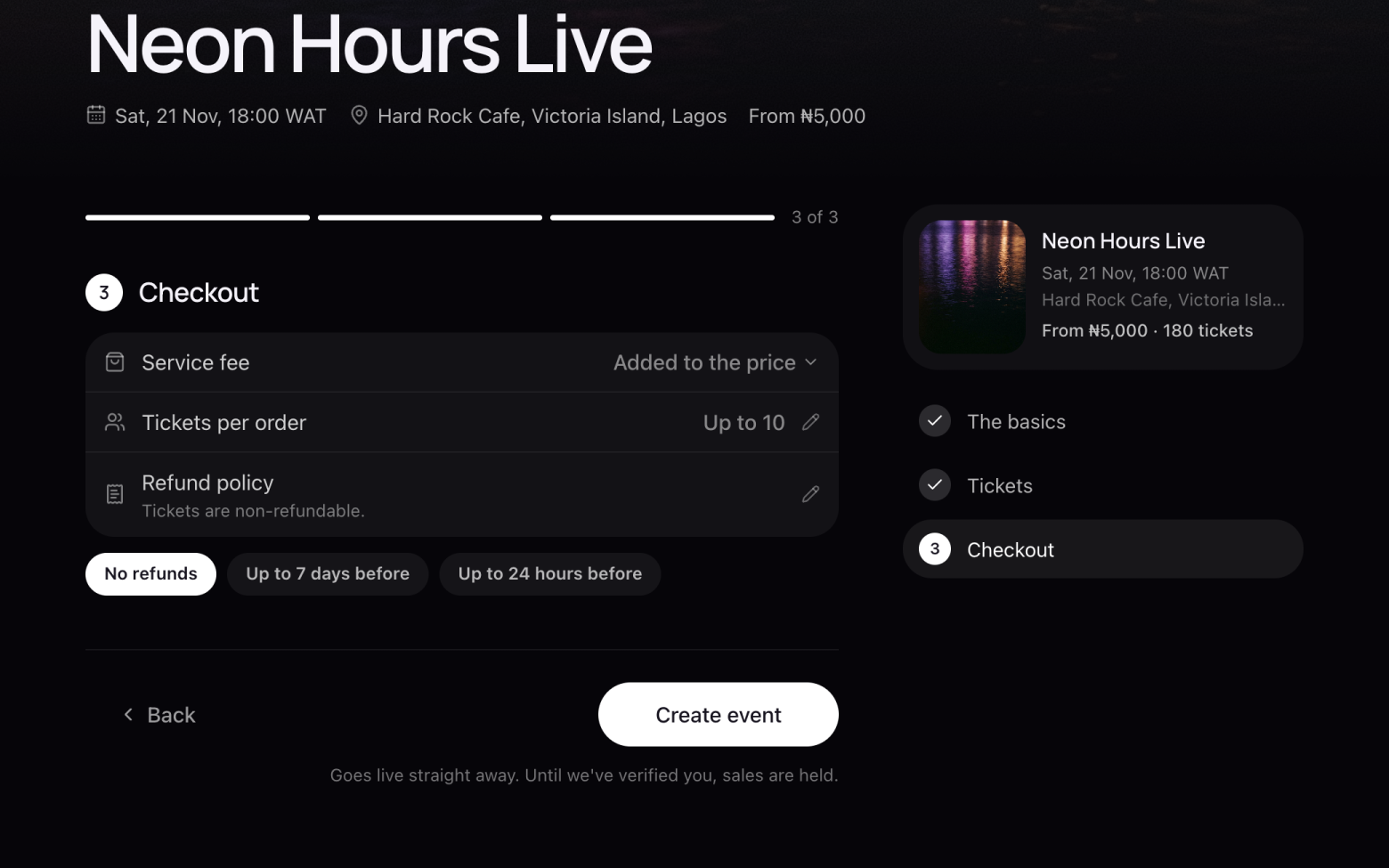
Set up checkout
- Choose who pays the Service fee: your buyers, on top of the price, or you, out of your sales.
- Set Tickets per order, the most one person can buy at once.
- Pick a Refund policy, or write your own.
These are explained in detail in “How to set the service fee, order limit and refund policy”.
Step 7 of 7
Put it on sale
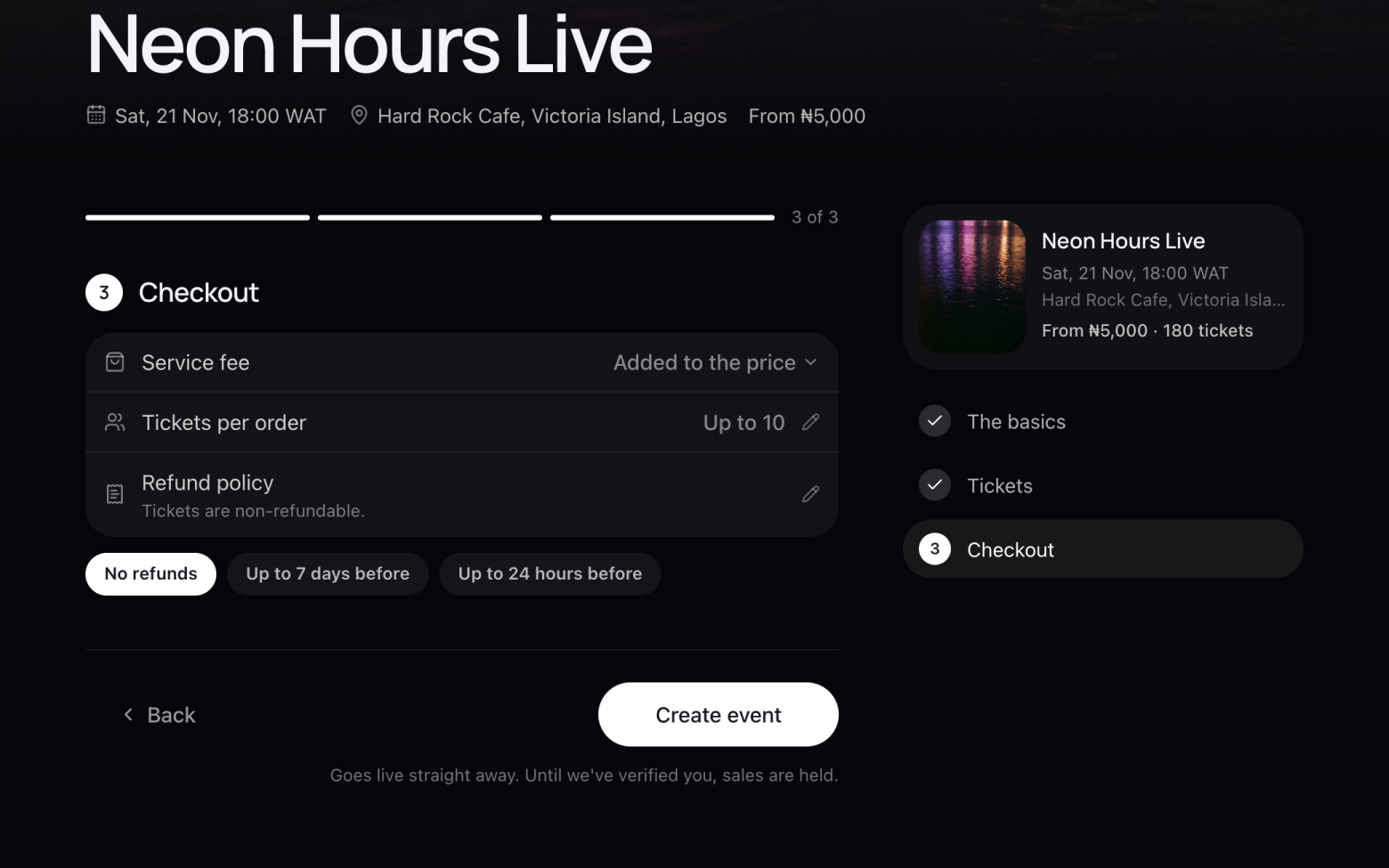
- Click Create event. It goes live straight away and you land on your event's page.
- Copy your link from there and share it.
Still stuck? Email support@entrans.app and tell us what you were trying to do.
Next guideHow to add and edit ticket typesMore on hosting an event
- How to set the service fee, order limit and refund policy
- How to share your event
- How to update your event
- How to create a discount code
- How to scan tickets at the door
- How to add people to your crew
- How to see and export your guest list
- How to verify your identity
- How to add your bank account and withdraw
- How to cancel an event